Install a 7mm NVMe drive cage assembly
Use this information to install a drive cage assembly.
About this task
Required tools
Make sure you have the required tools listed below in hand to properly replace the component.
Read Installation Guidelines and Safety inspection checklist to ensure that you work safely.
Ensure the 7mm NVMe drives are installed correctly into the drive cage assembly. See Install a 7mm NVMe drive.
For gap pad location and instruction, see Gap pad identification and location.
Before replacing the gap pad, gently clean the surface with an alcohol cleaning pad.
Hold the gap pad carefully to avoid deformation. Make sure no screw hole or opening is blocked by the gap pad material.
Go to Drivers and Software download website for ThinkSystem SC750 V4 to see the latest firmware and driver updates for your server.
Go to Update the firmware for more information on firmware updating tools.
- A video of this procedure is available at YouTube.
Procedure
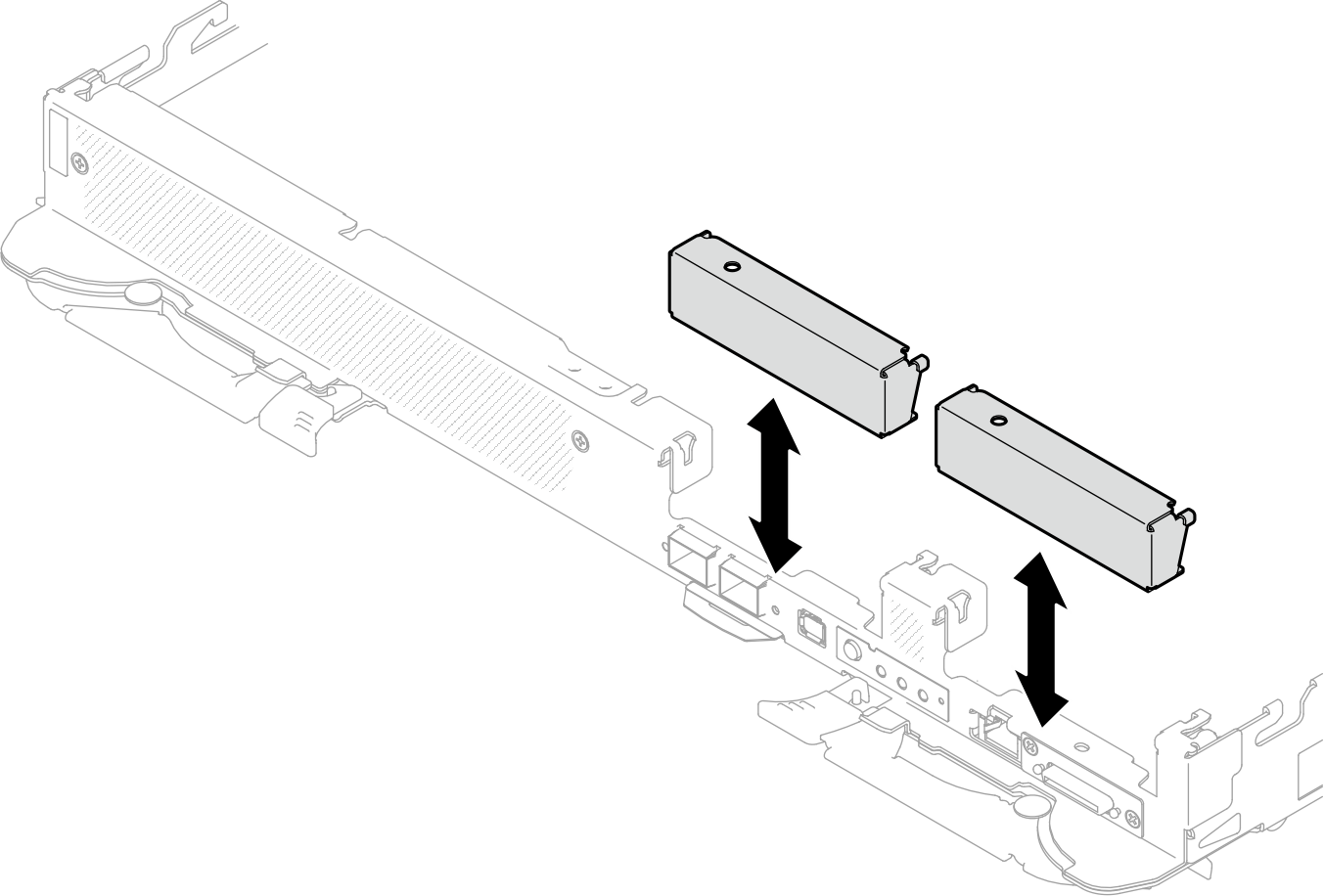
- Make sure the blank bezel fillers are installed. If not, install them to the node.Figure 1. Blank bezel filler installation
- If the drive cage gap pad is damaged or missing, replace it with a new one. See the following for the gap pad location for each drive cage. Make sure to follow Gap pad/putty pad replacement guidelines.NoteAlign the gap pad with marking on water loop when attaching gap pad.Figure 2. Markings on water loop for gap pad alignment
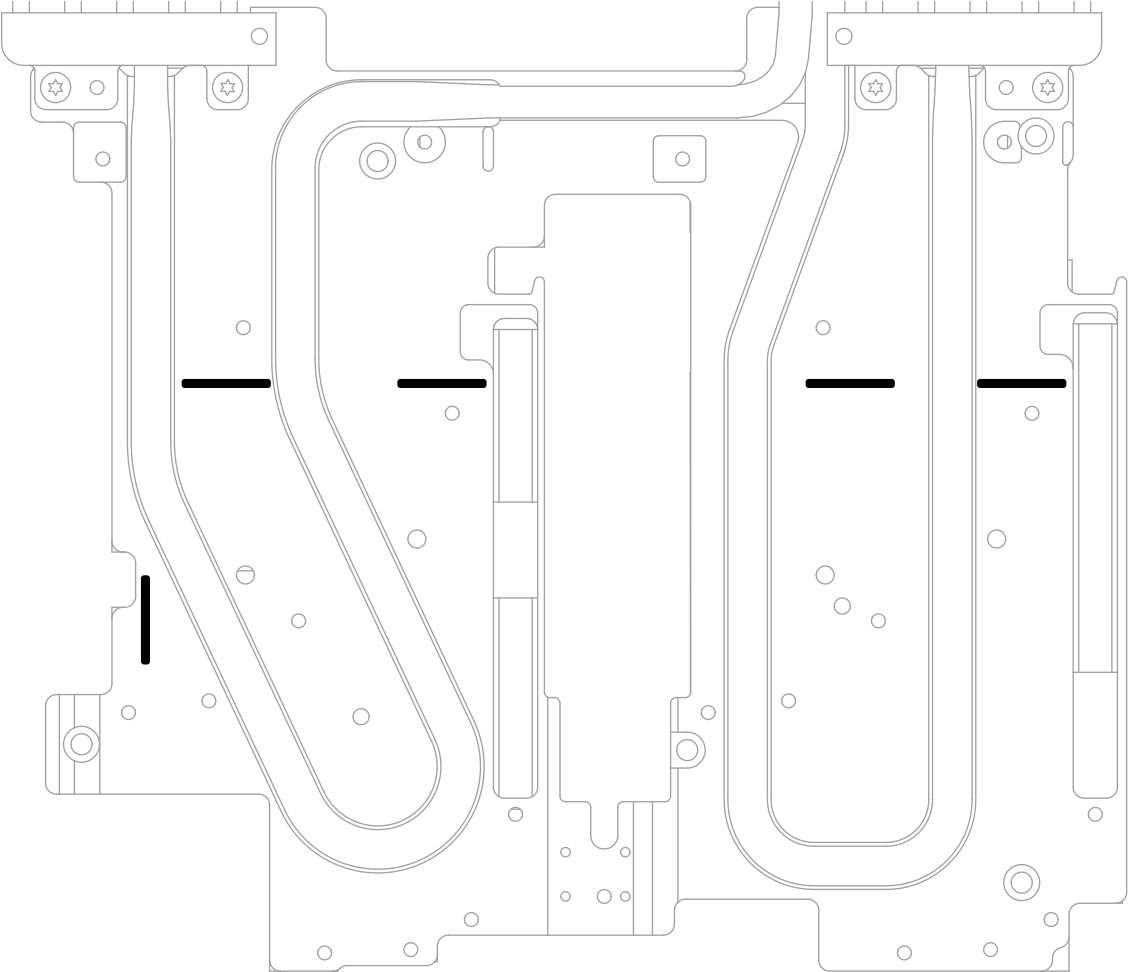 Figure 3. Replacing gap pad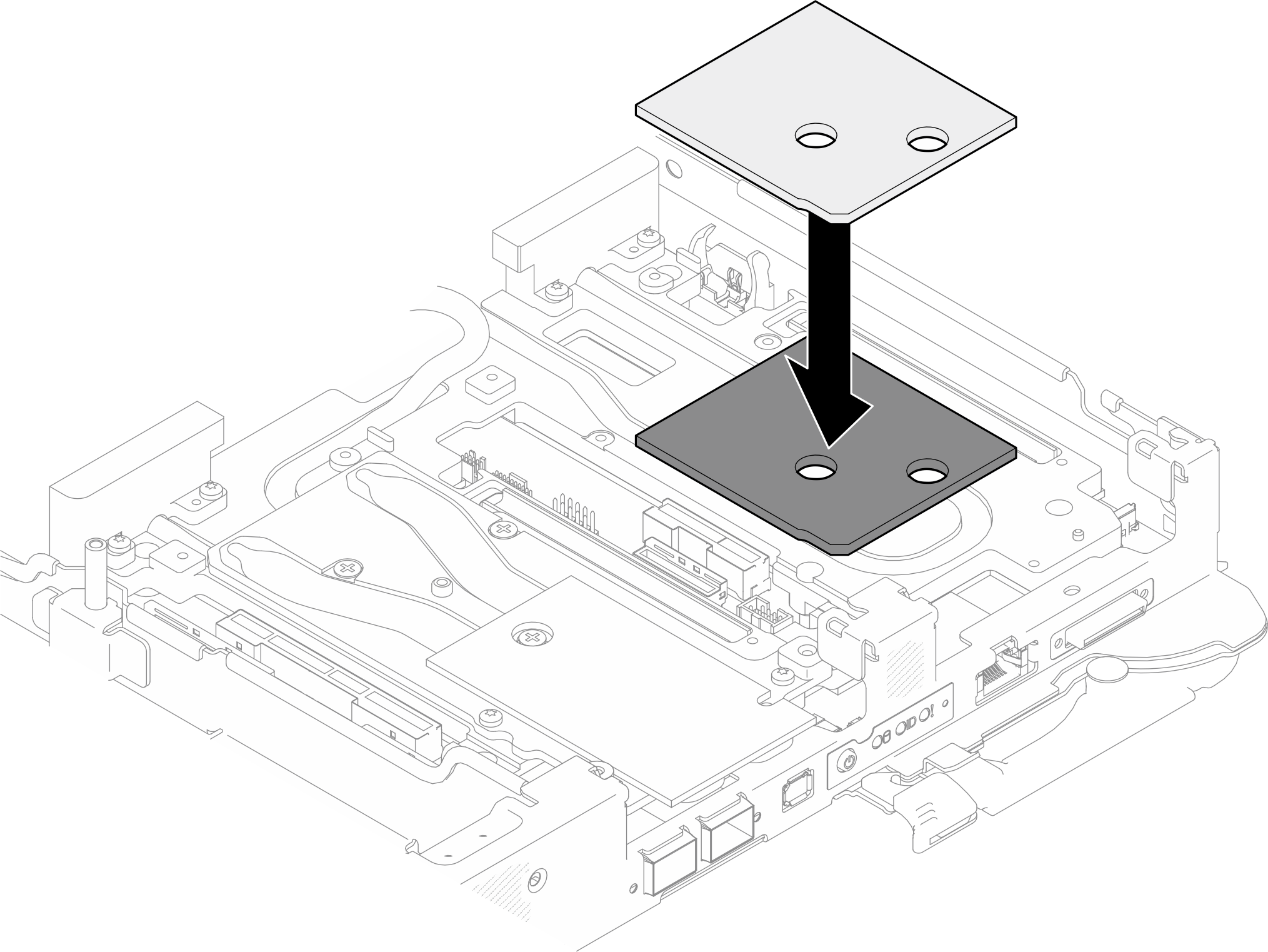
- Install the drive cage assembly.
 Install the drive assembly into the node.
 Secure the 3 screws.
NoteThe following illustration might differ slightly from your hardware, but the installation method is the same.
Figure 4. 7mm NVMe drive cage assembly installation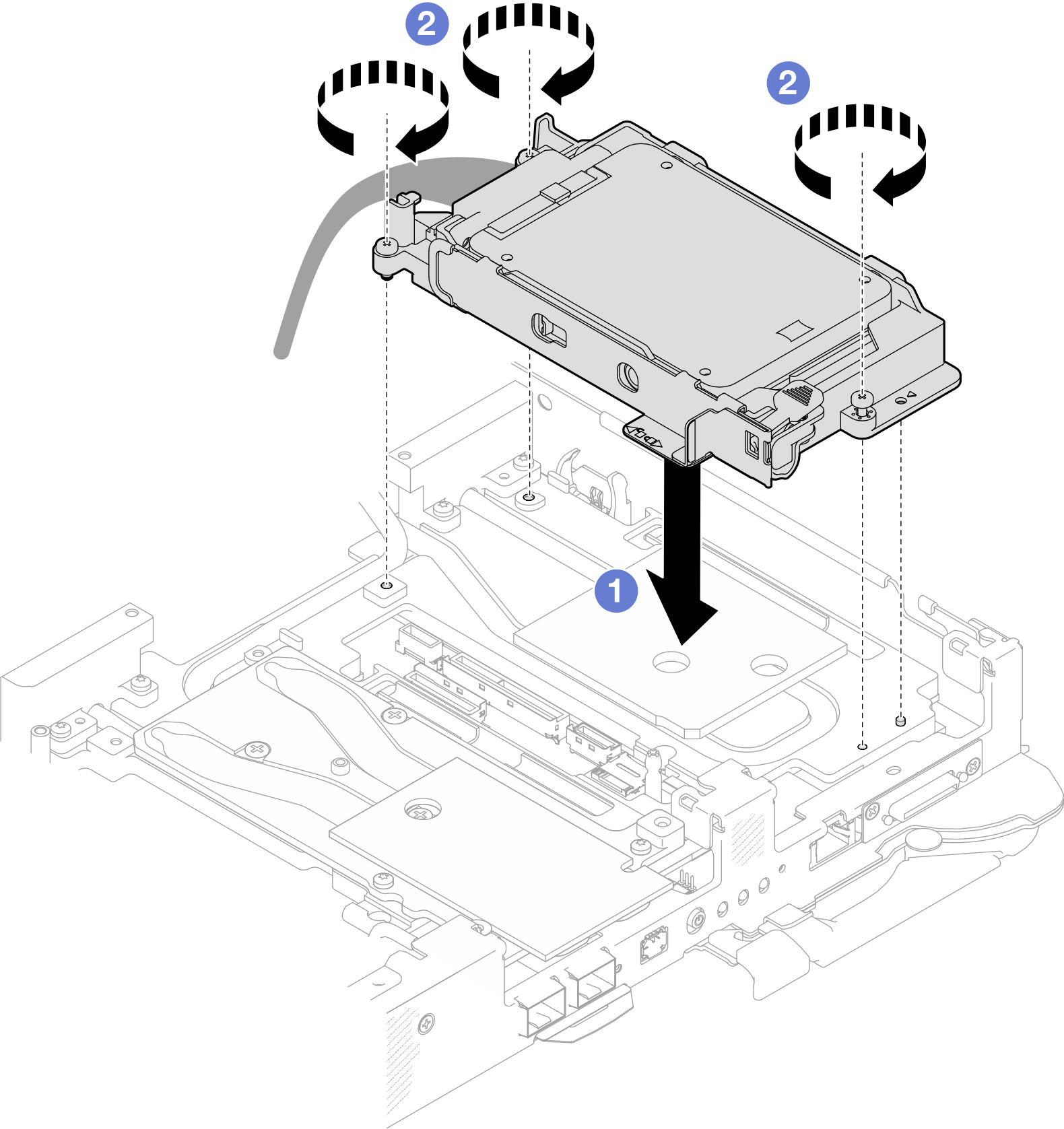
- Connect the drive assembly cable to the system board.Figure 5. 7mm NVMe drive assembly cable routing
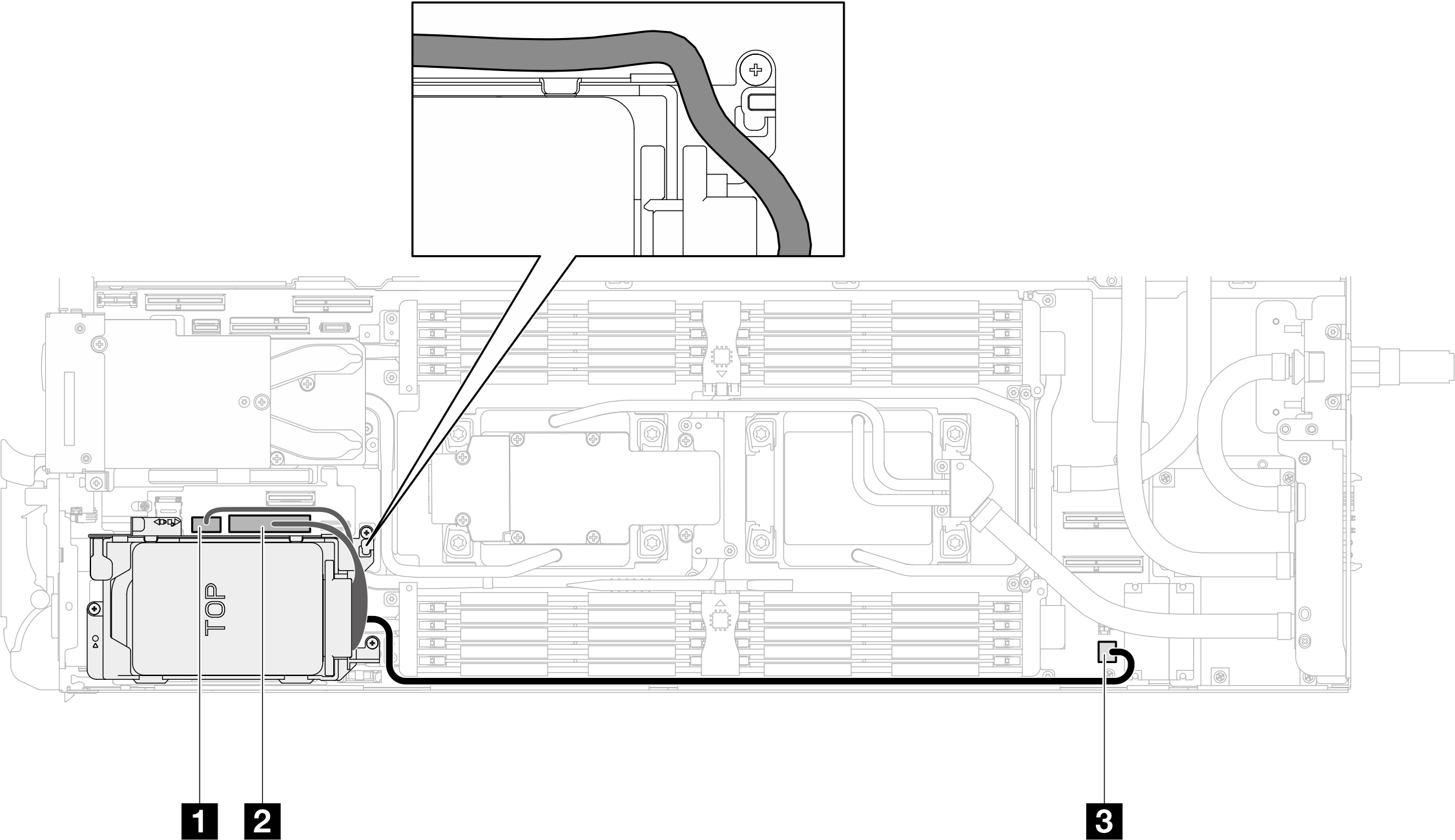
1 SATA 2-3 connector 2 NVMe 2-3 connector 3 Drive power 1 connector
Install the cross braces. See Install the cross braces.
Install the tray cover. See Install the tray cover.
Install the tray into the enclosure. See Install a tray in the enclosure.
- Connect all required external cables to the solution.NoteUse extra force to connect QSFP cables to the solution.
- Check the power LED on each node to make sure it changes from fast blink to slow blink to indicate all nodes are ready to be powered on.Note
Shared I/O configuration requires specific nodes power-on sequence. When powering on the system, power on Node B first; then, power on Node A. For more information, see PCIe adapter cable routing.