Initializing a new repository
The UpdateXpress application can initialize a new repository and add or remove software packages to or from the created repository.
Prerequisite:
The UpdateXpress application is running on a machine where the repository is to be created.
To initialize a new repository, do the following:
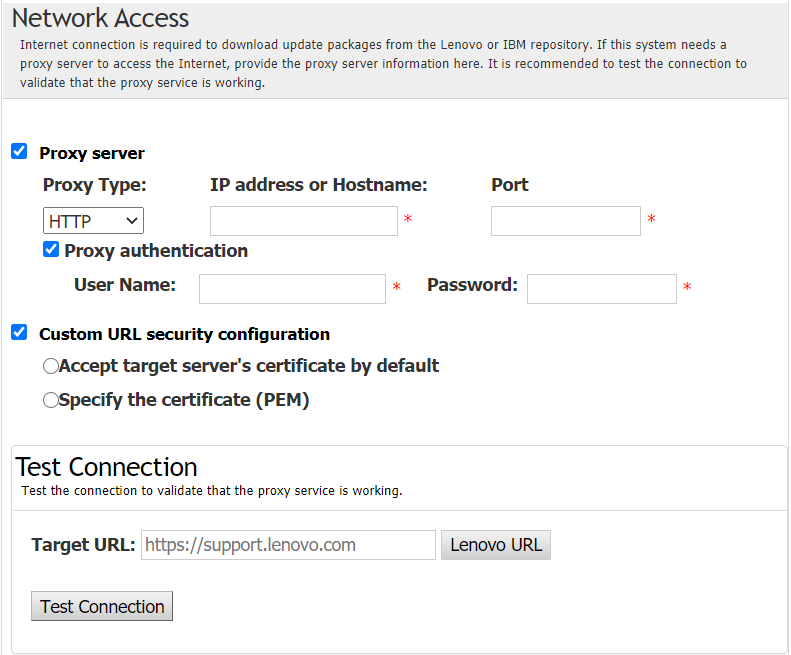
- In the Internet Access window, if there are no special requirement for security access, click Test Connection to check the network connection of the Target URL, and click Next. If users have more security concerns, before clicking Test Connection, configure Proxy server and/or Custom URL security configuration depending on the security requirements as follows:
Proxy server
Select Proxy Server if users require an HTTP/HTTPS proxy to connect to the Web, and complete the following fields:
Proxy Type The proxy type of the proxy server. IP address or Hostname The host name, IP address, or domain name of the proxy server. Port The port number of the proxy server. Select Proxy authentication if credentials must be specified to authenticate to the proxy server, and complete the following fields:
User Name The user name for authenticating to the proxy server. Password The password for the specified user name.
Custom URL security configuration
Select Custom URL security configuration if users require a reverse proxy, and select one of the following options:Accept target server’s certificate by default
Specify the certificate (PEM)
Give documentation feedback