Hub connection and management
XClarity One monitors and manages devices through one or more light-weight device managers, called hubs. Hubs are installed on premise in your data centers. They can be set up across multiple sites, where your devices are located. The hubs are the only devices that communicate directly with the XClarity One portal.
Hubs are installed on premise in your data centers and then connected to XClarity One. They can be located across multiple sites where your devices are located.
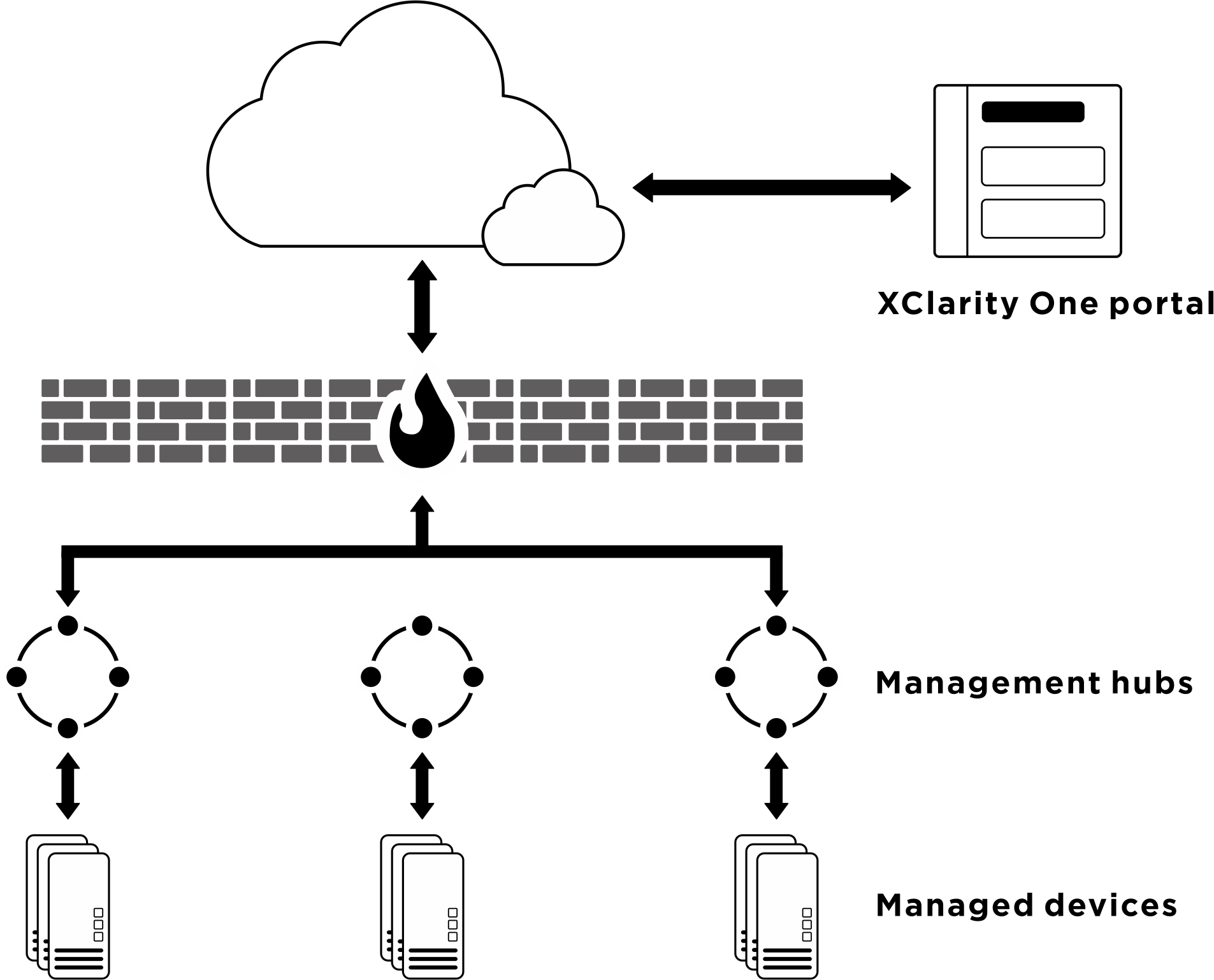
Before you add (connect) a hub to the XClarity One portal, ensure that:
The hub is installed and configured (see Setting up a hub).
Ensure that the hub is online and reachable on the network from XClarity One.
Ensure that you have the correct privileges to add a hub. You must be a hub administrator.
Adding a hub to XClarity One is a two-step process that involves installing a registration key from the hub to the XClarity One portal and installing a registration key from the XClarity One portal to the hub (see Connecting the hub to XClarity One).
When you add a hub, XClarity One retrieves information about all devices that are managed by the hub.
When you remove (disconnect) a management hub, XClarity One deletes information about the hub and its managed devices from its own data repository. However, the hub itself retains information about its managed devices and continues to manage those devices.
When you disable a hub, information about the hub and its managed devices is retrained; however, the management hub and its managed devices are not accessible to XClarity One.
Connecting a hub
After you connect (register) Lenovo XClarity One Hub to the XClarity One portal, you can begin managing and monitoring your devices.

Create the hub registration key.
- From XClarity One Hub, click the Connections view. Click Connect to a portal to open a wizard.
- Click Copy to Clipboard to copy the hub registration key.
- Click Next to display the Portal registration key page. Do not close the wizard.
Add the hub registration key to the XClarity One.
From the XClarity One portal, click the Organization management view.
Click the Add icon (
 ) on the Management Hub page to display the Add hub dialog.
Provide a custom name and location, and paste the hub registration key.
Click Add hub. The Token dialog is displayed.
Click Copy to Clipboard to copy the portal registration key, and then close the dialog.
Add the portal registration key to the hub.
From XClarity One Hub, paste the portal registration key in the Portal registration key page.
Click Connect to complete the connection process.
Disconnecting a hub
If you disconnect this hub, all data for the hub is removed from the XClarity One portal; however, device and system data is retained in the hub. The hub continues to manage devices and receive data from those devices. If you reconnect this management hub to the XClarity One portal, these devices show up as managed devices.